WordPress Security in 2026: The 10 Vulnerabilities Hackers Exploit Right Now

Right now, while you are reading this, automated bots are scanning the internet for WordPress websites. Not targeting you specifically — targeting any WordPress website with an outdated plugin, a weak password, a misconfigured file permission, or a missing security header. The scale of this is not exaggerated: according to Wordfence, their network blocks over 200 million attacks against WordPress websites every single day.
What this guide covers
- 1. The Current Scale of WordPress Attacks in 2026
- 2. Vulnerability #1: Outdated Plugins With Known CVEs
- 3. Vulnerability #2: Nulled Themes and Plugins
- 4. Vulnerability #3: Weak or Reused Admin Passwords
- 5. Vulnerability #4: No Two-Factor Authentication
- 6. Vulnerability #5: Exposed wp-login.php With Unlimited Login Attempts
- 7. Vulnerability #6: Outdated PHP Versions
- 8. Vulnerability #7: XML-RPC Abuse
- 9. Vulnerability #8: SQL Injection via Vulnerable Forms and Plugins
- 10. Vulnerability #9: Cross-Site Scripting (XSS) Through Unvalidated Inputs
- 11. Vulnerability #10: Misconfigured File Permissions
- 12. Your 30-Minute WordPress Security Hardening Checklist
- 13. Frequently Asked Questions About WordPress Security in 2026
WordPress powers over 43% of all websites. That market share makes it the single most attacked platform on the internet — not because it is poorly built, but because the sheer volume of targets makes it worthwhile for attackers to invest in WordPress-specific exploit tooling. A vulnerability in a popular WordPress plugin can be weaponised against hundreds of thousands of websites within hours of disclosure.
Most WordPress security breaches are preventable. They succeed not because attackers are sophisticated, but because the websites they hit have one or more known, fixable vulnerabilities that were never addressed. This guide covers the ten vulnerabilities that WordPress websites are being exploited through in 2026 — with specific, actionable fixes for each.
Before you read further: If your WordPress website has not had a security audit in the past 12 months, has plugins that have not been updated in 6+ months, or is on shared hosting with no WAF — treat this guide as urgent, not informational. Each vulnerability below represents an active, ongoing threat.
The Current Scale of WordPress Attacks in 2026
The threat landscape for WordPress in 2026 has intensified in two specific ways. First, AI-powered attack tooling has made vulnerability scanning faster and more thorough — bots can now identify exploitable versions of plugins across millions of websites in hours rather than days. Second, the financial incentive for successful compromises has grown: compromised WordPress sites are monetised through SEO spam injection, phishing page hosting, ransomware delivery, and cryptocurrency mining — all of which generate real income for attackers at scale.
The most commonly exploited WordPress vulnerabilities in 2026, according to data from Wordfence, Sucuri, and WPScan, follow a consistent pattern: the majority of successful attacks exploit known vulnerabilities in plugins and themes, with weak credentials and absent two-factor authentication accounting for most of the remainder. Truly novel zero-day attacks are a small fraction of actual compromises. Most breaches are entirely preventable with basic security hygiene.
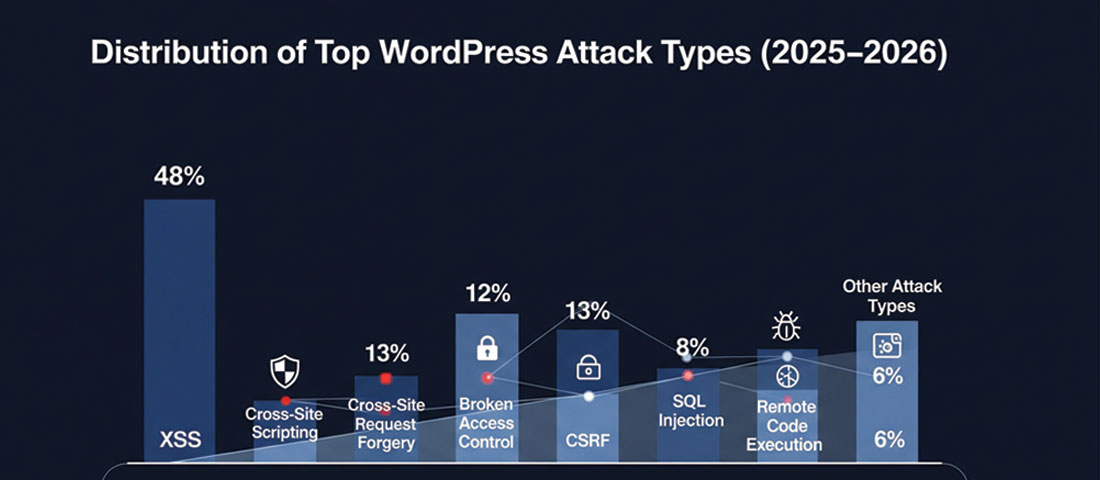
Plugin vulnerabilities are consistently the leading attack vector against WordPress websites — the most important single action for most WordPress sites is keeping plugins updated within days of security releases.
Vulnerability #1: Outdated Plugins With Known CVEs
Why it’s dangerous: When a security researcher discovers a vulnerability in a WordPress plugin, they typically follow responsible disclosure — notifying the plugin developer privately and giving them time to release a patch before the vulnerability is published. The moment the CVE (Common Vulnerability and Exposure) is published publicly, the clock starts. Within hours, automated bots are scanning for every WordPress installation running the vulnerable version. Websites that have not updated their plugins are immediately targeted.
In 2025, some of the most exploited WordPress plugin vulnerabilities included critical flaws in widely-used plugins with millions of active installations. A single unpatched plugin on a single website can be the entry point for a complete site compromise — database theft, admin account takeover, malicious code injection, or ransomware delivery.
The fix:
- Enable automatic updates for WordPress core (at minimum minor/security versions)
- Review and apply plugin updates at least weekly — daily for security patches
- Subscribe to the WPScan vulnerability database or use a security plugin that alerts on vulnerable installed software
- Remove plugins you are not actively using — an inactive plugin that never gets updated is a liability with zero benefit
- Check the “Last Updated” date before installing any new plugin — a plugin not updated in over 12 months is a risk
Critical stat: According to WPScan’s 2025 vulnerability database, over 97% of WordPress vulnerabilities are in plugins, not in WordPress core itself. Core gets updated promptly and is rigorously reviewed. Plugins do not always receive the same attention — particularly smaller or abandoned plugins.
Vulnerability #2: Nulled Themes and Plugins
Why it’s dangerous: Nulled themes and plugins are premium WordPress software that has been cracked, had its licence verification removed, and is redistributed for free through unofficial channels. The appeal is obvious — getting a $299 premium plugin for free. The reality is that nulled software is one of the most reliable ways to get malware on a WordPress installation.
Distributers of nulled WordPress software routinely embed malicious code into the themes and plugins before redistribution. The code may be dormant for weeks or months before activating — establishing a persistent backdoor, injecting hidden spam links into your content, harvesting credentials, or waiting for a trigger from a remote command-and-control server. Because the malicious code is inside software you intentionally installed, it survives basic malware scans that look only at known external attack signatures.
The fix:
- Never install themes or plugins from sources other than WordPress.org or the official developer’s website
- If you need a premium plugin, pay for it — the cost is trivially small compared to the cost of a compromised website
- If you have ever used nulled software on a site, treat it as potentially compromised and run a thorough malware scan with a tool like Wordfence or Sucuri Scanner before doing anything else
- Audit your installed plugins and themes against their official sources — verify every installed item is legitimately sourced
Vulnerability #3: Weak or Reused Admin Passwords
Why it’s dangerous: Credential stuffing — using lists of username/password combinations from previous data breaches to attempt login on other services — is one of the most automated and scalable attack methods available. If your WordPress admin password is the same as your email password, your LinkedIn password, or any other account that has ever been part of a data breach, it is available in breach databases that attackers use for credential stuffing.
Separately, brute force attacks systematically try common passwords against known WordPress usernames (particularly “admin” — still one of the most commonly used WordPress usernames). A site with the username “admin” and a password that appears in the top 10,000 most common passwords will be compromised by a brute force attack given enough time and no rate limiting.
The fix:
- Use a password manager (Bitwarden, 1Password, Dashlane) to generate and store a unique 20+ character password for your WordPress admin account
- Never reuse passwords across any accounts — ever
- Change your username from “admin” to something non-obvious if you are still using the default (create a new administrator account with a new username, transfer all posts to it, delete the “admin” account)
- Check if your email address has appeared in known data breaches at haveibeenpwned.com — if it has, change all associated passwords immediately
- Apply the same strong, unique password standard to your hosting control panel, database access, FTP/SSH credentials, and email account
Vulnerability #4: No Two-Factor Authentication
Why it’s dangerous: A strong password alone is insufficient protection for a WordPress admin account in 2026. Passwords can be phished, keylogged, obtained from data breaches, or guessed through brute force if rate limiting is absent. Two-factor authentication (2FA) means that even if an attacker has your correct username and password, they cannot log in without also having access to your second factor — a time-sensitive code from an authenticator app on your phone.
Without 2FA on a WordPress admin account, a compromised password means a compromised website. With 2FA, a compromised password means an attacker hits an additional barrier they typically cannot pass — driving them to move on to easier targets.
The fix:
- Install a 2FA plugin — WP 2FA (most user-friendly), Two Factor Authentication by Plugin Contributors, or the 2FA feature built into Wordfence Premium
- Use an authenticator app (Google Authenticator, Authy, or the authenticator built into your password manager) rather than SMS 2FA — SMS can be intercepted through SIM swapping attacks
- Require 2FA for all administrator and editor accounts on the site — not just your own
- Store backup codes securely — if you lose access to your authenticator app without backup codes, you can be locked out of your own site
Vulnerability #5: Exposed wp-login.php With Unlimited Login Attempts
Why it’s dangerous: WordPress’s default login page is at /wp-login.php — a URL that every attacker’s bot knows to target. By default, WordPress allows unlimited login attempts — meaning a bot can try thousands of username/password combinations per minute without any automatic blocking. This makes brute force attacks practical against any site that has not implemented login protection.
Even with strong passwords and 2FA, unlimited login attempts at scale create server load (potentially slowing or crashing the site during an attack), fill logs with noise that obscures genuine security events, and keep a persistent attack surface available for future exploitation.
The fix:
- Install a plugin with login attempt limiting — Limit Login Attempts Reloaded (free), or use the login protection built into Wordfence or iThemes Security
- Add HTTP authentication to the
/wp-admin/directory — a server-level username/password prompt that must be passed before the WordPress login page is even accessible - Restrict access to
/wp-login.phpby IP address through your hosting firewall or.htaccessrules, allowing only your office IP and VPN exit IP - Consider changing the login URL using a plugin like WPS Hide Login — while not a security solution in itself (security through obscurity is not sufficient), it eliminates automated bot scanning of the default URL
- Implement Cloudflare’s free plan — its bot protection significantly reduces the volume of automated login attempts that ever reach your server
Vulnerability #6: Outdated PHP Versions
Why it’s dangerous: WordPress runs on PHP — the server-side programming language that processes every page request. PHP releases regular security updates and eventually reaches “end of life” — the point at which no further security patches are issued. Running WordPress on an end-of-life PHP version means running on software with known, unpatched vulnerabilities that will never be fixed.
As of 2026, PHP 7.4 is end-of-life and PHP 8.0 has reached end of life. PHP 8.1, 8.2, and 8.3 are actively maintained. Yet a significant proportion of WordPress installations worldwide still run on PHP versions that are no longer receiving security patches — many because their hosting provider has not upgraded their server or because they have not taken the action to update their PHP version in their hosting control panel.
The fix:
- Check your current PHP version in your WordPress admin under Tools → Site Health, or in your hosting control panel
- If you are running PHP 8.0 or below, upgrade immediately — PHP 8.2 or 8.3 is the recommended version in 2026
- Before upgrading PHP, test on a staging environment to ensure all plugins and themes are compatible with the target PHP version — most modern plugins support PHP 8.x, but legacy plugins may not
- If your host does not allow PHP version selection or does not offer PHP 8.2+, consider switching hosting providers — a host still running end-of-life PHP on its servers is a security liability
Vulnerability #7: XML-RPC Abuse
Why it’s dangerous: XML-RPC is a protocol that allows remote applications to communicate with WordPress — it was originally designed for the WordPress mobile app and publishing tools like Windows Live Writer. In 2026, most WordPress sites do not need XML-RPC, but it is enabled by default. Attackers exploit XML-RPC in two ways: it can be used to bypass login attempt limiting (because it processes login attempts differently to wp-login.php), and it can be used to amplify DDoS attacks against your server by using the system.multicall method to execute hundreds of commands in a single request.
The fix:
- If you do not use the WordPress mobile app or any third-party publishing tool that requires XML-RPC, disable it entirely
- Add the following to your
.htaccessfile to block all XML-RPC requests at the server level:
# Block WordPress xmlrpc.php requests
<Files xmlrpc.php>
  order deny,allow
  deny from all
</Files>
- Alternatively, use a security plugin — Wordfence, iThemes Security, and All In One WP Security all include XML-RPC disabling options
- If you use Jetpack (which requires XML-RPC), configure your security plugin to allow XML-RPC from Jetpack’s IP ranges only rather than disabling it entirely
Vulnerability #8: SQL Injection via Vulnerable Forms and Plugins
Why it’s dangerous: SQL injection occurs when malicious SQL code is inserted through an input field (a form, a URL parameter, a search box) and executed by the database — allowing attackers to read, modify, or delete database contents, extract user credentials, or in the worst case take complete control of the database and the site it powers. SQL injection has been on the OWASP Top 10 list of web application security risks consistently — not because it is new, but because it is still being introduced through poorly coded plugins and themes.
A WordPress contact form, search function, or custom query that does not properly sanitise and validate input before passing it to the database is vulnerable to SQL injection. Attackers identify these vulnerabilities through automated scanning and exploit them using tools specifically built for SQL injection attacks.
The fix:
- Keep all plugins and themes updated — SQL injection vulnerabilities in plugins are frequently patched in security releases
- Use a Web Application Firewall (WAF) — Cloudflare (free plan) and Wordfence both block known SQL injection patterns before they reach WordPress
- Use established, well-maintained form plugins (WPForms, Gravity Forms, Contact Form 7) rather than obscure alternatives with smaller security review communities
- For custom development, always use WordPress’s prepared statements (
$wpdb->prepare()) and sanitisation functions — never pass raw user input to database queries - Run a vulnerability scan with WPScan or Wordfence to identify plugins on your site with known SQL injection vulnerabilities
Vulnerability #9: Cross-Site Scripting (XSS) Through Unvalidated Inputs
Why it’s dangerous: Cross-Site Scripting (XSS) attacks inject malicious JavaScript code into a website that is then executed in the browsers of visitors or administrators who view the affected content. Stored XSS — where the malicious script is saved in the database and runs for every visitor who loads the affected page — is particularly damaging. Attackers can use XSS to: steal session cookies and hijack administrator accounts, redirect visitors to phishing sites or malware downloads, deface website content, and silently install additional malware.
XSS vulnerabilities are consistently one of the most common vulnerability types reported in WordPress plugins — they typically arise when plugin code outputs user-supplied content to the browser without properly escaping it.
The fix:
- Keep all plugins updated — XSS patches are released regularly and are among the highest-priority security updates to apply
- Use a WAF that includes XSS pattern filtering — Cloudflare and Wordfence both provide this at their free/base tiers
- Set security headers that help browsers mitigate XSS: Content-Security-Policy (CSP) and X-XSS-Protection headers can be configured through your
.htaccessfile or a security plugin - Be careful about user-submitted content that gets displayed on your site — ensure any such content is sanitised before display, and limit who can submit content that appears publicly
- For developers: always use WordPress’s
esc_html(),esc_attr(), andesc_url()functions when outputting any data that could originate from user input
Vulnerability #10: Misconfigured File Permissions
Why it’s dangerous: File permissions control who can read, write, and execute files on the server. Overly permissive file permissions — particularly world-writable directories (permission 777) — allow any process on the server to write files to your WordPress installation. In a shared hosting environment, this means another website on the same server (potentially compromised itself) can write malicious code into your WordPress files. Even on dedicated servers, permissive permissions make it easier for an attacker who has gained any foothold to escalate their access.
The most critical file to protect is wp-config.php — it contains your database credentials, authentication keys, and WordPress configuration. If an attacker can read this file, they have your database password and can access your entire database directly.
The fix:
| File / Directory | Correct Permission | Why |
|---|---|---|
| wp-config.php | 600 or 640 | Only the owner should read/write — no group or world access |
| All WordPress files (.php, .js, .css) | 644 | Owner can read/write; group and world can only read |
| All directories | 755 | Owner can read/write/execute; group and world can read/execute |
| /wp-content/uploads/ | 755 | WordPress needs to write here — but world-writable (777) is too permissive |
| .htaccess | 644 | Web server needs to read it; should not be world-writable |
- Check your current file permissions through your hosting file manager or via SSH:
ls -la - Fix permissions via SSH (ask your host if you are not familiar):
find /path/to/wordpress -type f -exec chmod 644 {} \;andfind /path/to/wordpress -type d -exec chmod 755 {} \; - Most security plugins include a file permission audit — Wordfence and iThemes Security both flag files with overly permissive settings
Your 30-Minute WordPress Security Hardening Checklist
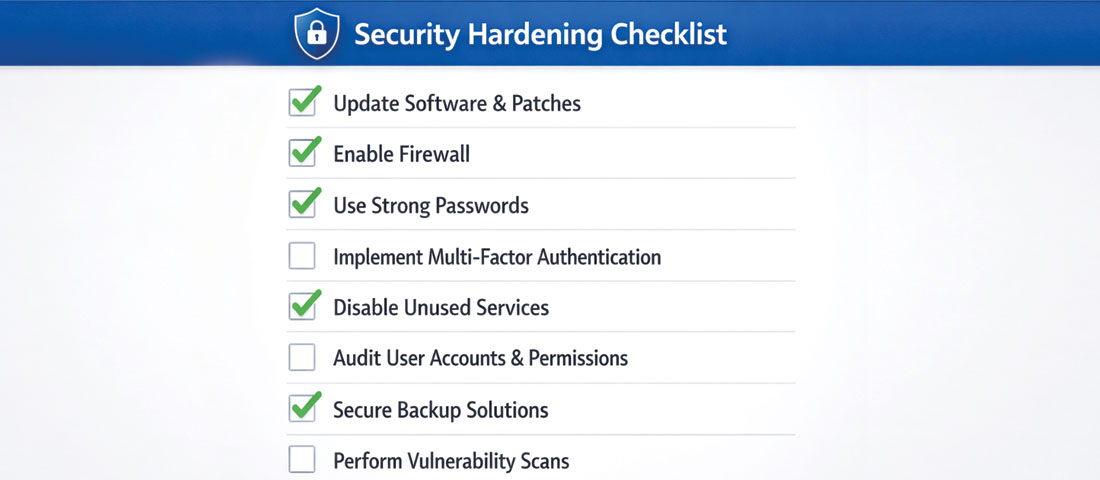
Working through a systematic security checklist is the most reliable way to close the vulnerabilities that attackers actively exploit — most of these steps take minutes, not hours.
You do not need to implement everything in this guide in a single session. Here is a prioritised 30-minute plan for immediately improving your WordPress security posture:
-
Minutes 1–5: Update everything
WordPress admin → Updates. Apply all available updates for WordPress core, plugins, and themes. If anything breaks, revert from your backup (which you will set up in step 4). This single action addresses the #1 attack vector immediately. -
Minutes 5–10: Audit and remove unused plugins and themes
Plugins → Installed Plugins. Deactivate and delete any plugin you are not actively using. Appearance → Themes: delete all themes except your active theme and one default WordPress theme (Twenty Twenty-Four) as a fallback. Each removed plugin or theme is one fewer attack surface. -
Minutes 10–15: Install and configure a security plugin
Install Wordfence Security (free). Run the setup wizard. Enable the Web Application Firewall in Extended Protection mode. Enable Login Security. Run a malware scan. Note any issues flagged. -
Minutes 15–18: Enable 2FA on your admin account
Install WP 2FA. Follow the setup wizard to link your authenticator app. Store your backup codes somewhere safe. This is the fastest, highest-impact addition you can make after updating. -
Minutes 18–22: Set up automated backups
Install UpdraftPlus. Configure daily automated backups to remote storage (Google Drive or Dropbox are the simplest options — both work on the free plan). Set a 30-day retention period. Run a manual backup immediately to confirm it works. -
Minutes 22–25: Add Cloudflare
Sign up for Cloudflare (free). Change your domain’s nameservers to Cloudflare’s. Enable the security features: Bot Fight Mode on, Security Level set to Medium, SSL/TLS set to Full (Strict). This adds DNS-level DDoS protection, a basic WAF, and CDN caching in a single step. -
Minutes 25–28: Check your PHP version
WordPress Admin → Tools → Site Health → Info → Server. Check the PHP version. If it is below 8.1, contact your host to upgrade or do so through your hosting control panel. Note: test on staging first if possible. -
Minutes 28–30: Disable XML-RPC (if not needed)
In Wordfence → All Options → Brute Force Protection, enable “Block XML-RPC authentication.” Or add the .htaccess code from the XML-RPC section above. If you do not use the WordPress mobile app or remote publishing tools, this takes 30 seconds and removes an attack vector.
Frequently Asked Questions About WordPress Security in 2026
| How do I know if my WordPress website has been hacked? | The signs of a compromised WordPress website include: your site is redirecting visitors to unknown or spam websites; Google Search Console shows a manual action notification or security issue; your web host has suspended your account citing malicious content; you notice unfamiliar admin accounts in Users → All Users; your Google rankings have suddenly dropped (which can indicate Google has detected spam content); visitors or contacts tell you they received a phishing email appearing to come from your domain; or a malware scan reveals infected files. Some compromises are designed to be invisible to site owners — a WordPress site can be hosting phishing pages or spam links in injected content that only appears for search engine crawlers, not for logged-in administrators. Regular malware scanning with Wordfence is the most reliable way to catch these stealth compromises. |
| What is the most important thing I can do to secure my WordPress website? | Keeping all plugins, themes, and WordPress core updated is the single most impactful WordPress security action. The majority of successful WordPress hacks exploit known vulnerabilities in outdated software — vulnerabilities that have already been patched in newer versions. If you do only one security-related thing, let it be applying updates promptly — within days of security releases, and within hours for critical patches. The second highest-impact action is enabling two-factor authentication on all administrator accounts, which prevents credential-based attacks even when passwords are compromised. Together, these two actions address the vast majority of real-world WordPress compromises. |
| Are nulled WordPress themes and plugins really that dangerous? | Yes — nulled themes and plugins are one of the most reliable routes to a compromised WordPress website, and the threat is specifically severe because the malicious code is inside software you intentionally installed. Security researchers have consistently found that a significant proportion of nulled WordPress software contains backdoors, malware droppers, or spam injection code. The malicious code is often obfuscated and dormant initially, activating weeks or months after installation when the attacker is ready to exploit it. The cost of a legitimate premium plugin or theme is always trivially small compared to the cost of a compromised website — which can include lost rankings, lost data, customer data breaches, regulatory penalties, and the time and cost of professional malware remediation. |
| What is the best free WordPress security plugin in 2026? | Wordfence Security has the strongest free tier of any WordPress security plugin in 2026. The free version includes a Web Application Firewall (WAF) with rules updated 30 days after premium users receive them, a malware scanner that compares your installation against known-clean WordPress file versions, brute force protection with configurable login attempt limiting, live traffic monitoring showing attack attempts in real time, and two-factor authentication configuration. For DNS-level protection complementing Wordfence’s WordPress-level protection, Cloudflare’s free plan adds DDoS protection, a basic WAF, bot filtering, and CDN performance benefits — all before attack traffic even reaches your server. The combination of Wordfence (free) and Cloudflare (free) provides a two-layer security architecture that significantly exceeds what either provides alone. |
| What is SQL injection and how does it affect WordPress? | SQL injection is a type of attack where malicious SQL code is inserted through an input field — a form, URL parameter, or search box — and executed by the database, allowing attackers to read, modify, or delete database contents. In a WordPress context, a SQL injection vulnerability in a plugin or theme can allow attackers to extract all user credentials from the database (including admin passwords), read all stored content including private posts and customer data, modify database records to inject spam or malicious content, or in severe cases execute server commands. SQL injection vulnerabilities are introduced through poorly coded plugins and themes that pass user input to database queries without proper sanitisation. The fix is keeping plugins updated (SQL injection patches are released regularly), using a WAF, and choosing well-maintained plugins with strong security review histories. |
| How often should I back up my WordPress website? | For any active business website, daily automated backups are the appropriate minimum standard. For eCommerce WordPress sites where orders, customer data, and inventory change continuously, multiple daily backups or real-time backups are worth considering. The backup must be stored off-site — separately from your hosting provider — because any problem serious enough to compromise your website may also affect backups stored on the same server. Google Drive, Dropbox, Amazon S3, and similar cloud storage services are appropriate off-site backup destinations, all supported by UpdraftPlus and similar WordPress backup plugins. Critically: test your restore process. A backup you cannot successfully restore from provides no protection. Run a test restore to a staging environment at least once every three months to confirm that your backups are valid and recoverable. |
| My WordPress website was hacked — what should I do immediately? | If your WordPress website has been hacked, act in this sequence: first, take the site offline if possible (put it in maintenance mode or ask your host to temporarily suspend access) to prevent ongoing harm to visitors; second, contact your hosting provider — most quality hosts have security response procedures and can assist with initial containment; third, run a thorough malware scan using Wordfence or a professional malware scanning service to identify all infected files; fourth, restore from a clean backup if you have one from before the compromise (this is usually faster and more reliable than manual malware removal from a heavily infected site); fifth, identify and fix the vulnerability that allowed the initial breach — updating all plugins, changing all passwords, and reviewing for unauthorised admin accounts; sixth, check Google Search Console for any manual action or security notifications and follow the process to submit a reconsideration request once the site is clean. If you do not have a clean backup or cannot identify and fix the breach cause yourself, engage a professional WordPress security service — Sucuri and WP Site Care both offer malware remediation services. |
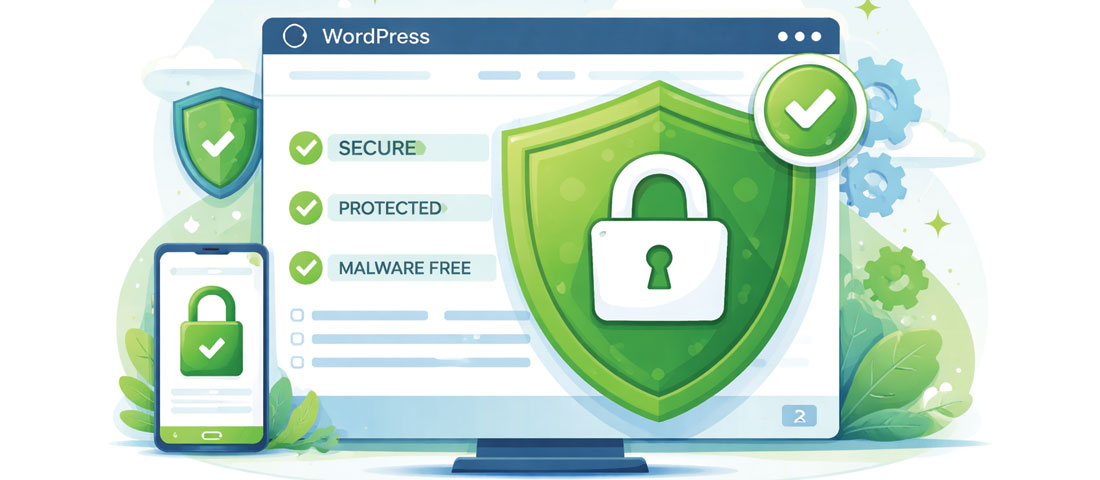
A properly hardened WordPress website — updated, backed up, protected by a WAF, secured with 2FA, and actively monitored — is an unattractive target that automated attacks pass over in favour of easier victims.
Not Sure if Your WordPress Website is Properly Secured?
Neel Networks provides WordPress security audits and ongoing security management for businesses across the USA, UK, Canada, Australia, and India. We identify the specific vulnerabilities on your site, implement the fixes, and provide ongoing monitoring — so you can focus on running your business, not worrying about your website.