WordPress Security Guide 2026: Advanced Strategies to Protect Your Website

WordPress powers over 40% of all websites on the internet. That extraordinary market share is a testament to the platform’s flexibility, accessibility, and ecosystem richness — but it is also what makes WordPress the most targeted platform for cyberattacks in the world. Every day, millions of automated attacks probe WordPress sites for vulnerable plugins, weak passwords, outdated software, and misconfigured settings.
What this guide covers
- 1. Why WordPress Is So Frequently Targeted
- 2. SSL/TLS and HTTPS: The Non-Negotiable Security Foundation
- 3. VPN Usage for Secure WordPress Management
- 4. How AI and Machine Learning Are Transforming WordPress Security
- 5. The WordPress Security Checklist: 15 Essential Protections
- 6. How Website Security Directly Affects Your SEO Rankings
- 7. The Best WordPress Security Plugins in 2026
- 8. Frequently Asked Questions About WordPress Security
The good news: most WordPress security breaches are entirely preventable. The vast majority of successful attacks exploit known vulnerabilities that have been patched, weak or reused passwords, or configuration mistakes that a security checklist would catch. A well-secured WordPress website is not impenetrable — but it is unattractive enough as a target that attackers move on to easier options.
This guide covers the complete WordPress security picture for 2026: SSL/TLS and HTTPS fundamentals, VPN usage for site management, how machine learning is transforming website security, how website security connects to SEO, and the advanced protection strategies that separate genuinely secure WordPress sites from those that are one vulnerable plugin away from a breach.
Why WordPress Is So Frequently Targeted
Understanding why WordPress attracts so many attacks helps you prioritise the right defences. The primary reasons are:
- Market share creates a massive attack surface. With over 40% of the web running WordPress, a single exploit that works against vulnerable WordPress installations can be deployed profitably across millions of sites simultaneously. Attackers invest in WordPress exploits because the return on investment — the number of vulnerable targets — is enormous.
- The plugin ecosystem is both a strength and a vulnerability. WordPress’s 60,000+ plugins are its most powerful feature and its greatest security risk. Every plugin is a potential attack vector. Plugins that are not regularly maintained, that have poor security practices in their code, or that have known unpatched vulnerabilities are among the most common entry points for attackers.
- Many WordPress sites are poorly maintained. Outdated WordPress core, outdated plugins, outdated PHP versions, and unchanged default settings are extremely common. Many WordPress sites are never actively maintained after launch — making them increasingly vulnerable over time as new exploits are discovered against the software versions they run.
- Automated attacks scale effortlessly. The majority of WordPress attacks are not manually targeted at your specific site — they are automated bots that scan the internet constantly for sites running vulnerable software versions, then attempt exploits at scale. The good news: this means even basic security measures significantly reduce your risk, because bots move on quickly when they encounter even modest resistance.
SSL/TLS and HTTPS: The Non-Negotiable Security Foundation
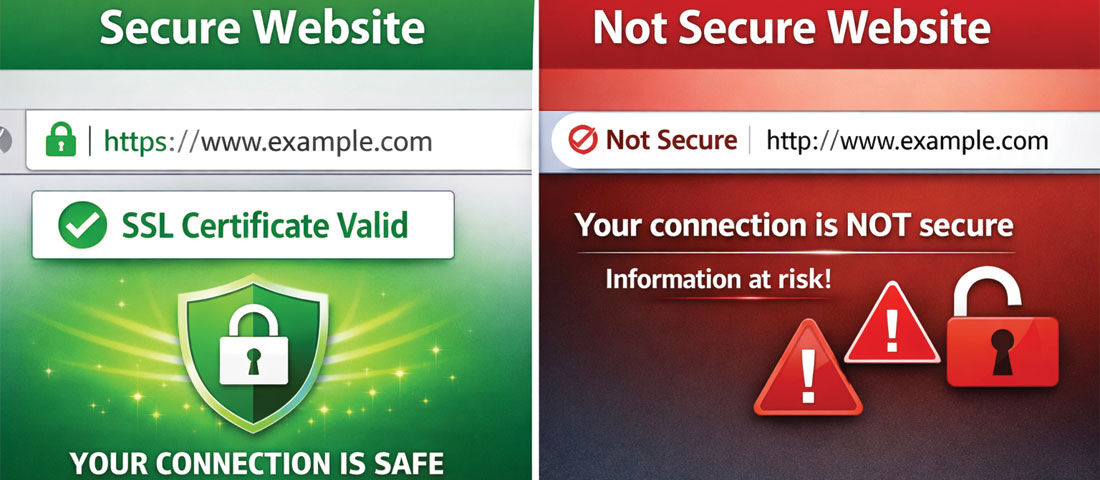
The HTTPS padlock in the browser address bar signals to visitors and search engines that all data transmitted between their browser and your website is encrypted.
SSL (Secure Sockets Layer) and its successor TLS (Transport Layer Security) are cryptographic protocols that establish an encrypted connection between a user’s browser and your web server. When your website uses HTTPS (HTTP Secure), all data transmitted between the visitor’s browser and your server — form submissions, login credentials, payment information, personal data — is encrypted and cannot be intercepted or read by third parties.
Why HTTPS Is Mandatory in 2026
- Google ranking factor: Google has used HTTPS as a ranking signal since 2014. All else being equal, HTTPS sites rank above HTTP sites.
- Browser security warnings: Chrome, Firefox, and Safari actively display “Not Secure” warnings on HTTP pages, particularly on pages with forms. These warnings immediately damage visitor trust and increase bounce rates.
- Legal and compliance requirements: In many jurisdictions, transmitting personal data without encryption is a legal compliance issue. GDPR in Europe and similar regulations require appropriate security measures for personal data transmission.
- Visitor trust: 84% of users say they abandon a purchase if they see an “Not Secure” warning (GlobalSign research). HTTPS is a visible trust signal that directly affects conversion rates.
Getting and Maintaining SSL/TLS
Free SSL certificates are available from Let’s Encrypt and are provided automatically by most quality hosting providers. If your WordPress site is not already running HTTPS, the steps are: install an SSL certificate through your hosting control panel (most hosts do this with one click), update your WordPress site URL to HTTPS in Settings → General, implement 301 redirects from all HTTP URLs to their HTTPS equivalents, and update all internal links and hardcoded URLs to use HTTPS. The process takes less than an hour on a modern hosting environment.
The Role of TLS Versions
TLS has evolved through multiple versions. TLS 1.0 and 1.1 are deprecated and insecure — modern browsers and security standards require TLS 1.2 or preferably TLS 1.3. Ensure your server is configured to only accept TLS 1.2 and above. Most modern hosting providers handle this automatically, but it is worth verifying — SSL Labs’ free server test (ssllabs.com/ssltest/) will tell you exactly which TLS versions your server accepts and give you a letter grade for your SSL/TLS configuration.
VPN Usage for Secure WordPress Management
A Virtual Private Network (VPN) creates an encrypted tunnel for your internet traffic — protecting the data you transmit from being intercepted by third parties. For WordPress site management specifically, VPN usage matters in two contexts:
Protecting Your WordPress Admin Access
When you access your WordPress dashboard from a coffee shop, hotel, airport, or any public Wi-Fi network, your connection is potentially observable by other users on the same network. Without a VPN, your WordPress login credentials, the content you edit, and the admin actions you take could be intercepted by someone on the same network using basic network monitoring tools.
Using a VPN when managing your WordPress site on any network that is not your private home or office connection is a straightforward security practice that eliminates this risk. Traffic between your device and the VPN server is encrypted — even if the underlying network is insecure.
Restricting WordPress Admin Access by IP
A more advanced (and highly effective) WordPress security measure is to restrict access to the /wp-admin/ directory to specific, known IP addresses — either your office’s static IP or your VPN server’s exit IP. This means that even if an attacker has valid WordPress credentials, they cannot access the admin dashboard from any IP address that is not on your approved list. This protection is implemented through your server’s .htaccess file or through your hosting control panel’s firewall rules.
Combining IP restriction with a VPN — using a VPN that provides a consistent exit IP address, and whitelisting that IP for WordPress admin access — creates a two-layer protection that makes brute force and credential-stuffing attacks against your admin area effectively impossible.
How AI and Machine Learning Are Transforming WordPress Security
Traditional WordPress security operated on a reactive model — identifying known attack signatures, writing rules to block them, and deploying those rules. This approach has a fundamental limitation: it only works against known threats. AI and machine learning-powered security takes a fundamentally different approach that is transforming what is possible in WordPress protection.
Behavioural Anomaly Detection
ML security systems learn what normal looks like on your WordPress site — typical login patterns, usual traffic volumes, normal request types, expected geographic distribution of visitors. When behaviour deviates significantly from this learned baseline — a sudden flood of login attempts, an unusual pattern of URL requests suggesting a scanning attack, traffic from geographies your site has never attracted before — the system flags and blocks the anomaly in real time, without needing to recognise the specific attack type.
Intelligent Bot Filtering
Not all bots are malicious — search engines, monitoring tools, and legitimate automation need access to your site. AI-powered bot management systems distinguish between legitimate and malicious automated traffic with high accuracy, using dozens of behavioural signals simultaneously. This reduces false positives (blocking legitimate visitors) while catching sophisticated bots that evade simple IP-based blocking.
Zero-Day Exploit Protection
Zero-day exploits — attacks targeting vulnerabilities that have not yet been publicly disclosed or patched — cannot be defended against by signature-based security systems that do not know the attack exists. ML-based anomaly detection can identify zero-day exploit attempts through their behavioural signatures — the unusual request patterns, the abnormal SQL structures, the unexpected file access patterns — even when the specific exploit is not yet known.
The WordPress Security Checklist: 15 Essential Protections
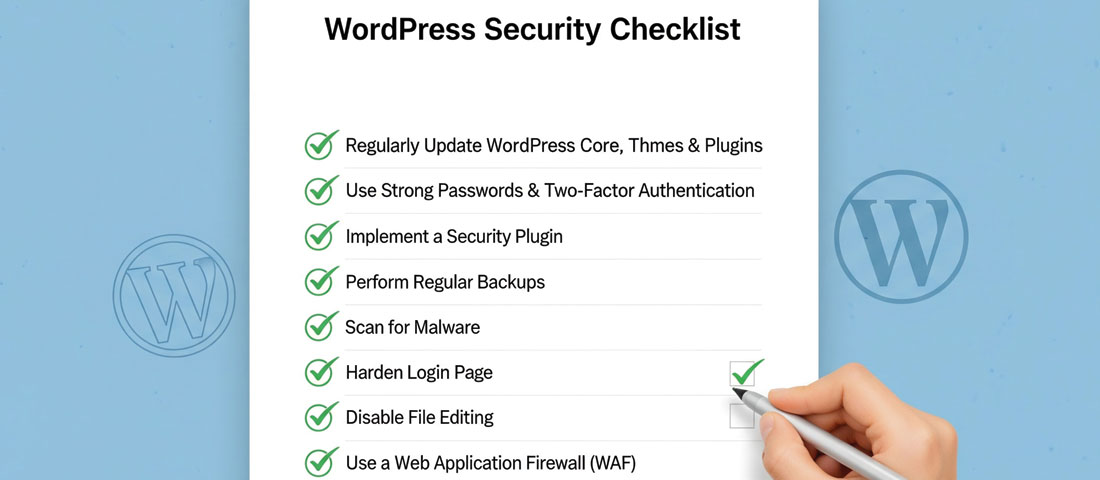
WordPress security is not a single action — it is a checklist of layered protections that together make your site an unattractive target for attackers.
-
Keep WordPress core, themes, and plugins updated
The single most important WordPress security action. The vast majority of successful WordPress hacks exploit known vulnerabilities in outdated software — vulnerabilities that have already been patched in newer versions. Enable automatic updates for WordPress core (minor versions at minimum) and review and apply plugin and theme updates at least weekly. -
Use strong, unique passwords for all accounts
Use a password manager to generate and store unique, complex passwords for your WordPress admin account, your hosting control panel, your database, and your FTP/SSH access. Never reuse passwords across accounts. The WordPress admin password should be at least 16 characters with mixed case, numbers, and special characters — or better yet, a passphrase generated by a password manager. -
Enable two-factor authentication (2FA)
2FA requires a second verification step beyond a password — typically a code from an authenticator app or SMS. Even if your password is compromised, 2FA prevents login without the second factor. Plugins like WP 2FA or Google Authenticator add 2FA to WordPress login with minimal configuration. For any site with business significance, 2FA is non-negotiable. -
Change the default admin username
WordPress’s default admin username is “admin” — which means attackers already know half of the login credentials they need to try. Change your admin username to something non-obvious during or immediately after installation. If you currently have a user named “admin,” create a new administrator account with a different username, transfer all posts to the new account, and delete the “admin” account. -
Limit login attempts
By default, WordPress allows unlimited login attempts — making it vulnerable to brute force attacks that try thousands of username/password combinations. A plugin like Limit Login Attempts Reloaded or the login attempt limiting feature in security suite plugins (Wordfence, iThemes Security) blocks IP addresses after a configurable number of failed attempts, making brute force attacks impractical. -
Install a reputable security plugin
A comprehensive security plugin provides firewall protection, malware scanning, brute force prevention, file integrity monitoring, and security hardening in one package. Wordfence Security (most widely used), Sucuri Security, and iThemes Security Pro are the leading options. At minimum, use the free version of Wordfence, which provides web application firewall and malware scanning at no cost. -
Implement a Web Application Firewall (WAF)
A WAF filters malicious traffic before it reaches your WordPress installation — blocking known attack patterns, SQL injection attempts, cross-site scripting, and other common attack vectors. Cloudflare’s free plan includes a basic WAF. Wordfence’s free tier includes a WordPress-level WAF. Premium options (Cloudflare Pro, Sucuri) provide more sophisticated rule sets and real-time threat intelligence. -
Keep regular, off-site backups
Backups are your recovery plan when security measures fail — and sometimes they will. Automated daily backups stored off-site (separate from your hosting provider — in cloud storage like Amazon S3 or Google Drive) ensure that a security incident, a botched update, or a hosting provider failure cannot cause permanent data loss. Plugins like UpdraftPlus, BlogVault, or JetPack Backup automate this. Test your restore process regularly — a backup you cannot restore from is not a backup. -
Set correct file permissions
WordPress files and directories should have specific permission settings that allow WordPress to function while preventing unauthorised modification. Files should be set to 644 and directories to 755. Thewp-config.phpfile (which contains your database credentials) should be set to 600. Overly permissive file settings (777 on directories, for example) are a common security misconfiguration that allows file modification attacks. -
Disable XML-RPC if not needed
XML-RPC is a remote publishing protocol that allows external applications to communicate with your WordPress site. It is a common attack vector — used in DDoS amplification attacks and as a bypass for login attempt limits. If you do not use applications that require XML-RPC (like the WordPress mobile app or certain publishing tools), disable it entirely through your security plugin or by adding a rule to your.htaccessfile. -
Use HTTPS everywhere
Ensure your site is fully HTTPS with a valid SSL certificate and that all HTTP requests are automatically redirected to HTTPS. See the SSL/TLS section above for implementation details. -
Protect the
wp-admindirectory
Add an additional layer of authentication to your WordPress admin directory — an HTTP authentication prompt (username and password at the server level, before the WordPress login page loads) that must be passed before the WordPress login form is even accessible. This simple measure stops automated attacks that never get past the first authentication layer. -
Monitor for file changes
File integrity monitoring compares your WordPress installation’s files against a known-clean baseline and alerts you when files are added, modified, or deleted. Unexpected file changes are one of the earliest indicators of a successful compromise. Wordfence and several other security plugins include file integrity monitoring. -
Secure your hosting environment
Your WordPress security is only as strong as the hosting environment it runs on. Ensure your hosting uses PHP 8.1 or above (not end-of-life PHP versions), provides server-level firewalling, offers malware scanning and removal as part of the service, and uses server isolation that prevents cross-contamination between accounts on shared hosting. -
Use security headers
HTTP security headers — Content Security Policy (CSP), X-Frame-Options, X-Content-Type-Options, Referrer-Policy — instruct browsers on how to handle your site’s content in ways that prevent specific types of attacks (clickjacking, cross-site scripting, MIME sniffing). These are typically added through your.htaccessfile or Nginx configuration, and can be validated using securityheaders.com.
How Website Security Directly Affects Your SEO Rankings
The connection between website security and SEO is direct and commercially significant — yet it is one of the most commonly overlooked aspects of both disciplines.
- Google blacklisting. Google actively scans websites for malware, phishing content, and deceptive pages. Sites found to contain these are blacklisted — removed from search results and displayed with a prominent “This site may harm your computer” warning to any users who find them through other channels. Recovery from blacklisting requires cleaning the malware, fixing the vulnerabilities, and submitting a reconsideration request — a process that typically takes days to weeks, during which organic traffic can drop to near zero.
- HTTPS as a ranking signal. As covered above, HTTPS is a direct Google ranking factor. HTTP sites rank below HTTPS equivalents.
- Site speed and uptime. Security incidents — DDoS attacks, malware infections that add heavy code to pages, database attacks that slow query times — directly impact site speed and uptime, both of which affect Google’s assessment of your site’s user experience quality.
- Spam content injection. One of the most insidious forms of WordPress hack is SEO spam injection — where attackers add hidden links and keyword-stuffed pages to your website to boost their own rankings. Your site may appear to function normally for legitimate visitors while hosting thousands of hidden spam pages that damage your domain’s reputation with Google. Regular security scanning catches this early.
- Trust signals for visitors. Browser security warnings on HTTP sites, Google Safe Browsing warnings on compromised sites, and security certificate errors all increase bounce rates dramatically — signalling to Google that users are not finding your site trustworthy or useful.
The Best WordPress Security Plugins in 2026
| Plugin | Best For | Key Features | Cost |
|---|---|---|---|
| Wordfence Security | Most businesses — best free tier | WAF, malware scanner, brute force protection, live traffic monitoring, 2FA | Free / Premium from $119/year |
| Sucuri Security | Sites that need CDN + WAF + monitoring | Cloud WAF (DNS-level), CDN, malware removal, uptime monitoring | From $199/year |
| iThemes Security Pro | Comprehensive hardening + 2FA | Brute force protection, 2FA, file change detection, security dashboard | From $99/year |
| Cloudflare (free plan) | DNS-level protection for all sites | DDoS protection, basic WAF, bot filtering, SSL, CDN, performance boost | Free / Pro from $20/month |
| All In One WP Security | Budget-conscious sites — free only | Login lockdown, file permissions audit, database security, firewall | Free |
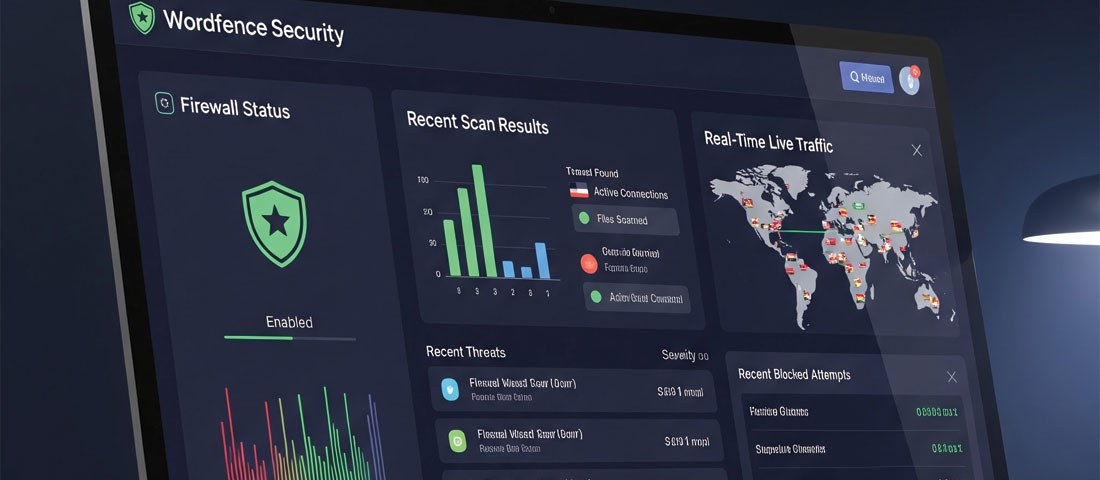
A security plugin’s dashboard gives you real-time visibility into threats being blocked, scan results, and your site’s overall security posture.
Frequently Asked Questions About WordPress Security
| Why is WordPress so frequently hacked? | WordPress is frequently targeted because its 40%+ market share makes it the highest-value target for attackers — a single exploit that works against vulnerable WordPress installations can be deployed against millions of sites simultaneously. The most common attack vectors are outdated plugins with known vulnerabilities, weak or reused passwords, outdated WordPress core versions, and default configurations that have known security weaknesses. The important insight is that most successful WordPress hacks are not targeted at your specific site — they are automated attacks that probe for known vulnerabilities. Even basic security measures significantly reduce your risk by making your site less attractive than the many unprotected alternatives. |
| What is the most important thing I can do to secure my WordPress website? | Keeping WordPress core, plugins, and themes updated to their latest versions is the single most impactful WordPress security action. The majority of successful WordPress hacks exploit known vulnerabilities in outdated software — vulnerabilities that have already been patched in newer versions. If you do only one security-related thing, make it keeping everything updated. The second most important action is implementing two-factor authentication on your admin account — making credential compromise alone insufficient for an attacker to access your dashboard. |
| Does my WordPress website need an SSL certificate? | Yes — an SSL certificate and HTTPS are mandatory for any business WordPress website in 2026. HTTPS encrypts all data transmitted between your site and your visitors’ browsers, protecting form submissions, login credentials, and any personal data. It is a direct Google ranking factor. Browsers display “Not Secure” warnings on HTTP pages. And in many jurisdictions, transmitting personal data without encryption has legal compliance implications. Free SSL certificates are available from Let’s Encrypt and are provided automatically by most quality hosting providers — there is no cost reason to delay implementing HTTPS. |
| How does website security affect SEO? | Website security affects SEO in several direct ways. HTTPS is a confirmed Google ranking signal — HTTP sites rank below HTTPS equivalents. Websites found to contain malware, phishing content, or spam injection are blacklisted by Google, removing them from search results entirely until cleaned and reconsideration is granted. Security incidents that cause downtime or performance degradation affect user experience metrics that Google considers in quality assessment. And hidden SEO spam injection — a common form of WordPress hack — adds pages and links that damage your domain’s reputation with Google, reducing rankings for your legitimate content. |
| What is the best free WordPress security plugin in 2026? | Wordfence Security has the best free tier of any WordPress security plugin in 2026. The free version includes a web application firewall (WAF) with real-time threat defence rules (updated 30 days after release for free users; real-time for premium), a malware scanner that checks core files and plugins against known-clean versions, brute force attack prevention with login attempt limiting, and live traffic monitoring. For sites that need DNS-level protection and CDN benefits in addition to WordPress-level security, Cloudflare’s free plan complements Wordfence effectively as a first line of defence before requests reach your server. |
| How often should I back up my WordPress website? | For an active business website that is updated regularly, daily automated backups are the appropriate standard. For WordPress sites with eCommerce (orders, customer data, inventory changing daily), real-time or multiple-daily backups are worth considering. Backups should be stored off-site — separate from your hosting provider, ideally in cloud storage like Amazon S3 or Google Drive — because a hosting-side failure, hack, or catastrophic error that affects your hosting account will also destroy backups stored on the same server. Test your restore process at least once every few months to confirm that your backups are valid and that the restore procedure works correctly. |
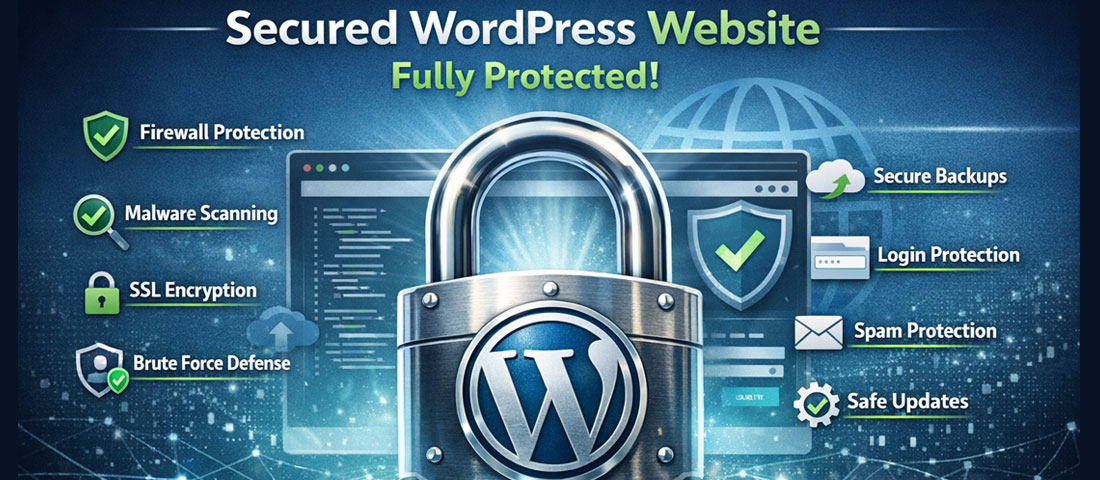
Is your WordPress website properly secured for 2026?
Neel Networks provides WordPress security audits and ongoing security management for business websites across the USA, UK, Canada, and Australia. We identify vulnerabilities, implement the protections outlined in this guide, and provide ongoing monitoring so you can focus on your business.
Website Security Services Get a Free Security Audit WhatsApp Us